> ## Documentation Index
> Fetch the complete documentation index at: https://docs.bfl.ml/llms.txt
> Use this file to discover all available pages before exploring further.

# Technical Parameters

> Pick an aspect ratio and resolution for FLUX 3 Image, replace negative prompts with positive descriptions, and understand the supported request fields

export const AspectRatioGrid = ({ratios = []}) => {
  const [selected, setSelected] = useState("16:9");
  const [copied, setCopied] = useState("");
  const [stage, setStage] = useState(null);
  const [moved, setMoved] = useState(false);
  const stageRef = useRef(null);
  useEffect(() => {
    const el = stageRef.current;
    if (!el || typeof ResizeObserver === "undefined") return undefined;
    const observer = new ResizeObserver(([entry]) => setStage({
      w: entry.contentRect.width,
      h: entry.contentRect.height
    }));
    observer.observe(el);
    return () => observer.disconnect();
  }, []);
  const ratio = selected === "auto" ? "21:9" : selected;
  const [w, h] = ratio.split(":").map(Number);
  const value = w / h;
  const inset = 10;
  const box = stage && stage.w > 0 && stage.h > 0 ? stage : {
    w: 320,
    h: 240
  };
  const width = Math.round(Math.min(box.w - inset * 2, (box.h - inset * 2) * value));
  const height = Math.round(width / value);
  const src = "https://cdn.sanity.io/images/2gpum2i6/production/29a4ca87e605029fa9b98a14fa8c07f53a0c2ef2-1800x773.webp";
  const sourceWidth = 1800, sourceHeight = 773;
  const scale = Math.max(width / sourceWidth, height / sourceHeight);
  const imageWidth = sourceWidth * scale, imageHeight = sourceHeight * scale;
  const left = -Math.max(0, Math.min(imageWidth - width, 627 * scale - width / 2));
  const top = -Math.max(0, Math.min(imageHeight - height, 480 * scale - height / 2));
  const select = r => {
    setSelected(r);
    setCopied("");
    setMoved(true);
  };
  const onKeyDown = event => {
    const n = ratios.length, i = Math.max(0, ratios.indexOf(selected));
    const next = ({
      ArrowLeft: (i - 1 + n) % n,
      ArrowRight: (i + 1) % n,
      ArrowUp: i - 4,
      ArrowDown: i + 4,
      Home: 0,
      End: n - 1
    })[event.key];
    if (next === undefined) return;
    event.preventDefault();
    if (next < 0 || next >= n || next === i) return;
    select(ratios[next]);
    event.currentTarget.querySelectorAll('[role="radio"]')[next].focus();
  };
  const glyph = r => {
    if (r === "auto") return {};
    const [gw, gh] = r.split(":").map(Number);
    return gw >= gh ? {
      width: 16,
      height: Math.max(4, 16 * gh / gw)
    } : {
      width: Math.max(4, 16 * gw / gh),
      height: 16
    };
  };
  const copy = async () => {
    try {
      await navigator.clipboard.writeText(JSON.stringify({
        aspect_ratio: selected
      }, null, 2));
      setCopied("Copied");
    } catch {
      setCopied("Select the field below to copy it.");
    }
  };
  return <section className="not-prose aspect-ratio-grid" aria-label="Aspect ratio preview">
      <style>{`
        .aspect-ratio-grid{container-type:inline-size;margin:1.25rem 0;border:1px solid #8885;border-radius:1rem;overflow:hidden}
        .aspect-ratio-grid .arg-body{display:grid;grid-template-columns:minmax(0,1fr) minmax(0,1fr)}
        .aspect-ratio-grid .arg-stage{position:relative;min-height:280px;overflow:hidden;background:#8881;border-right:1px solid #8883}
        .aspect-ratio-grid .arg-stage img{position:absolute;max-width:none;margin:0;pointer-events:none}
        .aspect-ratio-grid .arg-ghost{opacity:.3;-webkit-mask-image:linear-gradient(90deg,transparent,#000 28px,#000 calc(100% - 28px),transparent);mask-image:linear-gradient(90deg,transparent,#000 28px,#000 calc(100% - 28px),transparent)}
        .aspect-ratio-grid .arg-crop{position:absolute;inset:0;margin:auto;overflow:hidden;border-radius:.35rem;box-shadow:0 6px 20px #0004}
        .aspect-ratio-grid .arg-crop:before,.aspect-ratio-grid .arg-crop:after{content:"";position:absolute;z-index:1;border:0 solid #fff6;pointer-events:none}
        .aspect-ratio-grid .arg-crop:before{inset:0 33.333%;border-width:0 1px}
        .aspect-ratio-grid .arg-crop:after{inset:33.333% 0;border-width:1px 0}
        .aspect-ratio-grid .arg-moved .arg-crop,.aspect-ratio-grid .arg-moved img{transition:width .35s ease,height .35s ease,left .35s ease,top .35s ease}
        .aspect-ratio-grid .arg-controls{display:flex;flex-direction:column;justify-content:center;padding:1rem;min-width:0}
        .aspect-ratio-grid .arg-options{display:grid;grid-template-columns:repeat(4,minmax(0,1fr));gap:.375rem}
        .aspect-ratio-grid button{background:transparent;color:inherit;border:1px solid #8885;border-radius:.5rem;cursor:pointer;font:inherit;font-size:.82rem;line-height:1.2;padding:.4rem .5rem;min-height:40px}
        .aspect-ratio-grid .arg-options button{display:flex;align-items:center;justify-content:center;gap:.4rem;font-variant-numeric:tabular-nums;min-width:0}
        .aspect-ratio-grid .arg-options button:hover{border-color:#729e83}
        .aspect-ratio-grid .arg-options button[aria-checked="true"]{background:#486a58;color:white;border-color:#486a58}
        .aspect-ratio-grid button:focus-visible{outline:2px solid #729e83;outline-offset:2px}
        .aspect-ratio-grid .arg-glyph{display:flex;align-items:center;justify-content:center;flex:none;width:18px;height:18px}
        .aspect-ratio-grid .arg-glyph span{box-sizing:border-box;border:1.5px solid currentColor;border-radius:2px;opacity:.85}
        .aspect-ratio-grid .arg-auto span{width:14px;height:14px;border-style:dashed;border-radius:3px}
        .aspect-ratio-grid .arg-caption{display:grid;font-size:.8rem;line-height:1.55;margin:.85rem 0;opacity:.85}
        .aspect-ratio-grid .arg-caption span{grid-area:1/1}
        .aspect-ratio-grid .arg-caption [aria-hidden="true"]{visibility:hidden}
        .aspect-ratio-grid .arg-field{display:flex;flex-wrap:wrap;gap:.6rem;align-items:center;font-size:.8rem}
        .aspect-ratio-grid code{font-size:.8rem;overflow-wrap:anywhere}
        @media(max-width:720px){.aspect-ratio-grid .arg-body{grid-template-columns:1fr}.aspect-ratio-grid .arg-stage{height:240px;min-height:0;border-right:0;border-bottom:1px solid #8883}}
        @container (max-width:720px){.aspect-ratio-grid .arg-body{grid-template-columns:1fr}.aspect-ratio-grid .arg-stage{height:clamp(240px,42cqw,300px);min-height:0;border-right:0;border-bottom:1px solid #8883}}
        @media(prefers-reduced-motion:reduce){.aspect-ratio-grid .arg-moved .arg-crop,.aspect-ratio-grid .arg-moved img{transition:none}}
      `}</style>
      <div className="arg-body">
        <div className={moved ? "arg-stage arg-moved" : "arg-stage"} ref={stageRef}>
          <img className="arg-ghost" src={src} style={{
    width: imageWidth,
    height: imageHeight,
    left: `calc(50% + ${left - width / 2}px)`,
    top: `calc(50% + ${top - height / 2}px)`
  }} alt="" aria-hidden="true" />
          <div className="arg-crop" style={{
    width,
    height
  }}>
            <img src={src} style={{
    width: imageWidth,
    height: imageHeight,
    left,
    top
  }} alt="A vintage car on a coastal road, kept in view as the frame changes" />
          </div>
        </div>
        <div className="arg-controls">
          <div className="arg-options" role="radiogroup" aria-label="Aspect ratio" onKeyDown={onKeyDown}>{ratios.map(r => <button type="button" role="radio" key={r} data-ratio={r} aria-checked={selected === r} tabIndex={selected === r ? 0 : -1} onClick={() => select(r)}>
              <span className={r === "auto" ? "arg-glyph arg-auto" : "arg-glyph"} aria-hidden="true"><span style={glyph(r)} /></span>{r}
            </button>)}</div>
          <p className="arg-caption">
            <span aria-hidden={selected !== "auto"}>Auto follows your first reference image, or uses 1:1 without a reference. The preview uses a landscape reference.</span>
            <span aria-hidden={selected === "auto"}>This crops one sample to show the frame. FLUX 3 generates a new composition at the ratio you choose.</span>
          </p>
          <div className="arg-field"><code>{`"aspect_ratio": "${selected}"`}</code><button type="button" onClick={copy}>Copy field</button><span role="status">{copied}</span></div>
        </div>
      </div>
    </section>;
};

export const PromptDisplay = ({prompt}) => {
  const [copied, setCopied] = useState(false);
  const copy = () => {
    navigator.clipboard.writeText(prompt);
    setCopied(true);
    setTimeout(() => setCopied(false), 2000);
  };
  return <div className="not-prose" style={{
    marginTop: "1rem"
  }}>
      <div style={{
    backgroundColor: "#1a1a1a",
    borderRadius: "1rem",
    padding: "1.25rem 1.5rem",
    display: "flex",
    flexDirection: "column",
    gap: "1rem"
  }}>
        <p style={{
    color: "#e5e5e5",
    fontSize: "1rem",
    lineHeight: 1.6,
    margin: 0,
    fontFamily: "inherit"
  }}>
          {prompt}
        </p>
        <div style={{
    display: "flex",
    justifyContent: "flex-end"
  }}>
          <button onClick={copy} style={{
    backgroundColor: copied ? "#3d8a5b" : "var(--aspen-evergreen, #486A58)",
    color: "#fff",
    border: "none",
    borderRadius: "0.375rem",
    padding: "0.25rem 0.6rem",
    fontSize: "0.7rem",
    fontWeight: 600,
    cursor: "pointer",
    transition: "background-color 0.2s"
  }}>
            {copied ? "Copied!" : "Copy prompt"}
          </button>
        </div>
      </div>
    </div>;
};

export const PromptCarousel = ({slides = [], height = "500px"}) => {
  const [activeIdx, setActiveIdx] = useState(0);
  const items = slides.length > 0 ? slides : [{
    img: "https://images.unsplash.com/photo-1551963831-b3b1ca40c98e?w=800&fit=crop",
    prompt: "A cozy breakfast spread on a wooden table"
  }];
  const goTo = idx => {
    const next = Math.max(0, Math.min(items.length - 1, idx));
    setActiveIdx(next);
  };
  return <div className="not-prose" style={{
    borderRadius: "0.75rem",
    overflow: "hidden",
    border: "1px solid rgba(255,255,255,0.08)",
    background: "#000000",
    marginTop: 0
  }}>
      {}
      <div style={{
    position: "relative",
    width: "100%",
    height,
    overflow: "hidden"
  }}>
        <div style={{
    display: "flex",
    transition: "transform 400ms cubic-bezier(0.25, 1, 0.5, 1)",
    transform: `translateX(-${activeIdx * 100}%)`,
    height: "100%"
  }}>
          {items.map(item => <div key={item.img} style={{
    flex: "0 0 100%",
    height: "100%"
  }}>
              <img src={item.img} alt={item.prompt?.slice(0, 80) || ""} draggable={false} style={{
    display: "block",
    width: "100%",
    height: "100%",
    objectFit: "contain",
    pointerEvents: "none"
  }} />
            </div>)}
        </div>

        {items.length > 1 && <>
            <button onClick={() => goTo(activeIdx - 1)} style={{
    position: "absolute",
    top: "50%",
    left: "12px",
    transform: "translateY(-50%)",
    width: "40px",
    height: "40px",
    borderRadius: "50%",
    border: "none",
    background: "rgba(0,0,0,0.5)",
    backdropFilter: "blur(4px)",
    color: "#fff",
    cursor: "pointer",
    display: "flex",
    alignItems: "center",
    justifyContent: "center",
    zIndex: 2,
    opacity: activeIdx === 0 ? 0.3 : 1,
    transition: "opacity 200ms"
  }} disabled={activeIdx === 0}>
              <svg width="14" height="14" viewBox="0 0 14 14" fill="none"><path d="M9 2L4 7L9 12" stroke="#fff" strokeWidth="2" strokeLinecap="round" strokeLinejoin="round" /></svg>
            </button>
            <button onClick={() => goTo(activeIdx + 1)} style={{
    position: "absolute",
    top: "50%",
    right: "12px",
    transform: "translateY(-50%)",
    width: "40px",
    height: "40px",
    borderRadius: "50%",
    border: "none",
    background: "rgba(0,0,0,0.5)",
    backdropFilter: "blur(4px)",
    color: "#fff",
    cursor: "pointer",
    display: "flex",
    alignItems: "center",
    justifyContent: "center",
    zIndex: 2,
    opacity: activeIdx === items.length - 1 ? 0.3 : 1,
    transition: "opacity 200ms"
  }} disabled={activeIdx === items.length - 1}>
              <svg width="14" height="14" viewBox="0 0 14 14" fill="none"><path d="M5 2L10 7L5 12" stroke="#fff" strokeWidth="2" strokeLinecap="round" strokeLinejoin="round" /></svg>
            </button>
          </>}
      </div>

      {}
      {items.length > 1 && items[0]?.title ? <div style={{
    display: "flex",
    justifyContent: "center",
    gap: "4px",
    padding: "12px 8px 4px",
    flexWrap: "wrap"
  }}>
          {items.map((item, idx) => <button key={idx} onClick={() => goTo(idx)} style={{
    padding: "4px 12px",
    borderRadius: "6px",
    border: "none",
    cursor: "pointer",
    fontSize: "0.7rem",
    fontWeight: activeIdx === idx ? 700 : 500,
    background: activeIdx === idx ? "rgba(255,255,255,0.15)" : "transparent",
    color: activeIdx === idx ? "rgba(255,255,255,0.95)" : "rgba(255,255,255,0.45)",
    transition: "all 200ms ease"
  }}>
              {item.title}
            </button>)}
        </div> : items.length > 1 && <div style={{
    display: "flex",
    justifyContent: "center",
    gap: "8px",
    padding: "12px 0 4px"
  }}>
          {items.map((_, idx) => <button key={idx} onClick={() => goTo(idx)} style={{
    width: activeIdx === idx ? "24px" : "8px",
    height: "8px",
    borderRadius: "4px",
    border: "none",
    padding: 0,
    cursor: "pointer",
    background: activeIdx === idx ? "rgba(255,255,255,0.9)" : "rgba(255,255,255,0.3)",
    transition: "all 300ms ease"
  }} />)}
        </div>}

      {}
      <div style={{
    padding: "0.5rem 0.5rem 0.6rem"
  }}>
        <div style={{
    padding: "0.6rem 0.75rem",
    borderRadius: "6px",
    background: "rgba(255,255,255,0.06)",
    border: "1px solid rgba(255,255,255,0.10)",
    fontFamily: "monospace",
    fontSize: "0.75rem",
    lineHeight: 1.6,
    color: "rgba(255,255,255,0.7)",
    minHeight: "2.4rem",
    transition: "opacity 200ms ease"
  }}>
          <span style={{
    color: "rgba(255,255,255,0.35)",
    fontSize: "0.65rem",
    marginRight: "6px"
  }}>prompt:</span>
          {items[activeIdx]?.prompt || ""}
        </div>
      </div>
    </div>;
};

## Aspect ratios

FLUX 3 Image takes `aspect_ratio` as one of 15 fixed ratios, from `21:9` to `9:21`, or `auto`:

<AspectRatioGrid ratios={["auto", "21:9", "2:1", "16:9", "3:2", "7:5", "4:3", "5:4", "1:1", "4:5", "3:4", "5:7", "2:3", "9:16", "1:2", "9:21"]} />

`auto` follows the first image in `images`. With no references it produces `1:1`, so set the ratio yourself for any text-to-image request that is not square. See [Aspect ratio](/api-reference/utility/generate-an-image-with-flux-3) for the request details.

Choose the frame for the subject and where the image will be used:

| Ratio | Shape | Suits |
| - | - | - |
| `21:9`, `2:1` | Ultra-wide | Cinematic landscapes, panoramas, website banners |
| `16:9` | Widescreen | Scenes with horizontal movement, web headers, slides, video thumbnails |
| `3:2`, `7:5`, `4:3` | Landscape photo | Street and documentary photography, interiors, groups of people |
| `5:4`, `1:1`, `4:5` | Near square | Products, single portraits, social posts, logos and icons |
| `3:4`, `5:7`, `2:3` | Portrait | Posters, magazine and book covers, full-length fashion |
| `9:16`, `1:2`, `9:21` | Tall | Phone screens, stories, vertical banners, towers and waterfalls |

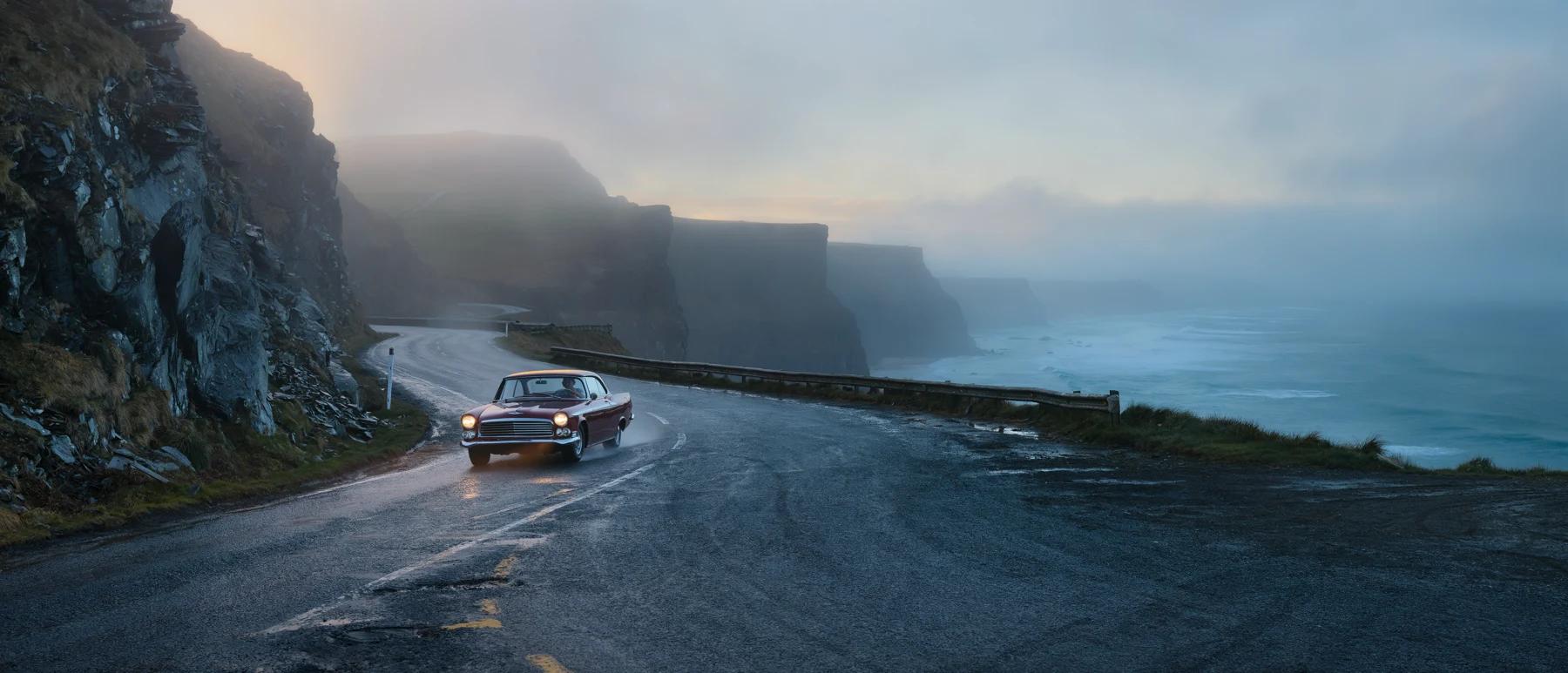
The ratio and the prompt should agree. If the frame is ultra-wide, say so in the prompt and give the model something to put across the width:

<Frame caption="FLUX 3 Image, aspect_ratio 21:9, resolution 4k">
  <img src="https://cdn.sanity.io/images/2gpum2i6/production/29a4ca87e605029fa9b98a14fa8c07f53a0c2ef2-1800x773.webp" alt="A vintage car with its headlights on, driving a coastal road between fog-covered cliffs and a turquoise sea at dawn." />
</Frame>

<PromptDisplay prompt="Ultra-wide cinematic shot of a fog-drenched coastal highway at dawn, cliffs on one side, turquoise sea on the other, a single vintage car with headlights on, soft golden rim light" />

"Cliffs on one side, turquoise sea on the other" fills the width that `21:9` creates. The same prompt in a `9:16` frame would have to squeeze both sides into a narrow column.

<Note>
  For edits, `auto` keeps the input's frame, which is usually what you want. Set a ratio explicitly when the edit should change the frame, for example to turn a square product shot into a `16:9` banner, and describe what fills the new space. For [layout prompts](/guides/prompting_layout), set `aspect_ratio` to the shape you drew the boxes for: the box grid stretches with the frame.
</Note>

### Resolution

Choose an output size with `resolution`. Check `output_mp` in the submit
response for the exact size in megapixels.

| Value | Use it for |
| - | - |
| `768sq` | Fast drafts while you work on the prompt |
| `1k` | The default. Most web and app images |
| `2k` | Print, hero images, and crops that need detail |
| `4k` | The largest output. Generation can take several minutes |

Iterate at a low resolution, then use `2k` or `4k` when you need more detail. Changing the resolution makes a new generation, so the composition can differ from the draft. See [Resolution](/api-reference/utility/generate-an-image-with-flux-3).

## Working without negative prompts

FLUX 3 Image has no negative prompt field. If a negative instruction gives an unwanted result, describe the intended scene directly: "an empty promenade" instead of "no crowds".

### The replacement strategy

When you catch yourself writing a negative phrase:

1. **Identify** the unwanted element: *"no crowds"*
2. **Ask** what would fill that space: *"What would I see there?"*
3. **Describe** that instead: *"an empty promenade"* or *"a single figure on the pier"*

**Common replacements:**

| Instead of... | Write... |
| - | - |
| “no people” | “empty”, “deserted”, “solitary” |
| “no colors” | “monochrome”, “black and white”, “grayscale” |
| “no text” | “clean surfaces”, “unmarked”, “blank” |
| “no background clutter” | “plain studio backdrop in one color” |
| “no modern elements” | “traditional”, “historical”, “period-accurate” |
| “not dark” | “brightly lit”, “sun-drenched” |
| “not sad” | “joyful”, “content” |
| “not running” | “walking slowly”, “standing still” |
| “not many” | “few”, “single”, “minimal” |

### Practical examples

<AccordionGroup>
  <Accordion title="Context and setting">
    * **Instead of**: "a street with no cars"
      **Write**: "a quiet pedestrian walkway with cobblestones"

    * **Instead of**: "a landscape without buildings"
      **Write**: "untouched wilderness with open natural terrain"

    * **Instead of**: "a room with no furniture"
      **Write**: "a spacious empty room with polished wooden floors"
  </Accordion>

  <Accordion title="Character and portrait">
    * **Instead of**: "a person without a hat"
      **Write**: "a person with loose hair falling to the shoulders"

    * **Instead of**: "a portrait with no glasses"
      **Write**: "a portrait showing clear, unobstructed eyes"
  </Accordion>

  <Accordion title="Mood and atmosphere">
    * **Instead of**: "not dark or scary"
      **Write**: "a warm, welcoming atmosphere with soft golden lighting"

    * **Instead of**: "not too realistic"
      **Write**: "stylized illustration with simplified forms and bold color blocks"
  </Accordion>

  <Accordion title="Composition">
    * **Instead of**: "portrait with no background distractions"
      **Write**: "portrait with a smooth gradient background from deep blue to black"
  </Accordion>
</AccordionGroup>

### The beach progression

Positive framing plus specific detail moves the image toward what you want. Each step adds detail to the one before:

<PromptCarousel
  height="400px"
  slides={[
{
  img: "/images/flux3-image/regen/F2-23.webp",
  prompt: "A beach"
},
{
  img: "/images/flux3-image/regen/F2-24.webp",
  prompt: "An empty beach with palm trees and gentle waves"
},
{
  img: "/images/flux3-image/regen/F2-25.webp",
  prompt: "An empty beach with palm trees and gentle waves at golden sunset. Wide cinematic framing from the sand, a clean level horizon and the shoreline curving gently into the distance. Low sunlight lights the edges of the palm fronds, warm gold reflects on the ripples, and the shaded sand stays softly cool. The beach remains open and undisturbed, with fine sand texture visible in the foreground."
},
]}
/>

### When positive alternatives don't work

If an unwanted element keeps appearing:

1. **Be more specific** about what you do want in that space.
2. **Describe it early**: put the replacement near the start of the sentence that sets the scene, not in a trailing clause.
3. **Add detail** to the positive alternative so it takes up the space: material, color, what it's doing.
4. **Give it context** so the replacement belongs in the scene: "a deserted beach at dawn, before the first swimmers arrive".

In an edit, removing something is an instruction, not a negation. "Remove the cat from the sofa" works as an edit prompt, and [Edit with boxes](/flux_3/flux3_image_bounding_boxes#edit-an-image) shows how to remove an element with a box.

FLUX 3 Image has no `negative_prompt` or `prompt_upsampling` field.


This documentation is built and hosted on [Mintlify](https://mintlify.com), a developer documentation platform.